From match video to video session.
Bring the video into the preparation for your next match, cut the scenes that matter in the studio and show them on the projector, tag by tag. Synced with the match report, every action jumps to the right moment.
Four steps to your video session.
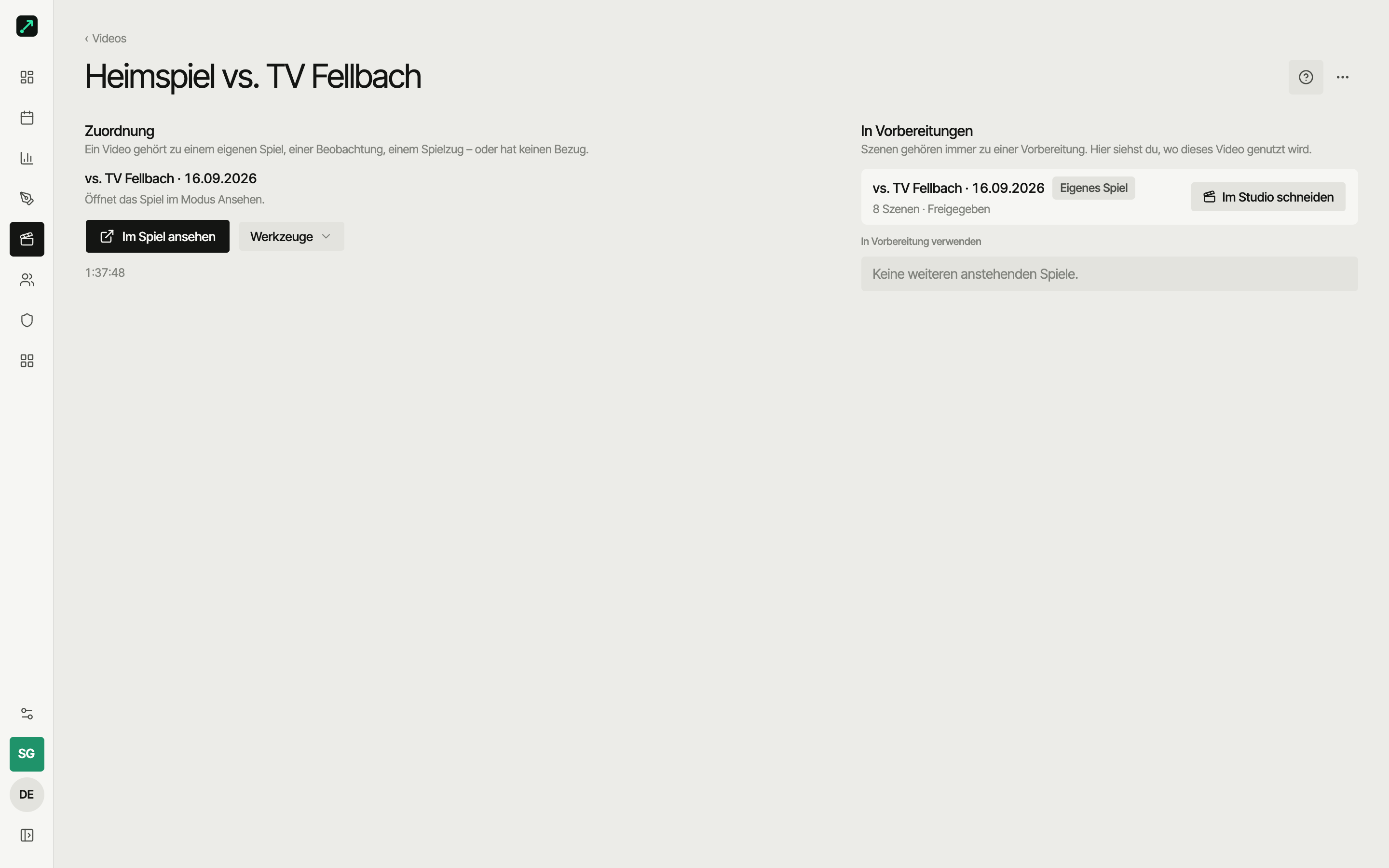
A match has at most one video. The preparation is the folder for your next match: videos, scenes, plays and scouting profiles all go there.
Add a video
Upload it or link it – one video per match. Observations of your opponent bring their video straight into your preparation. Uploads play in the studio right away while the upload finishes in the background.
Preparation
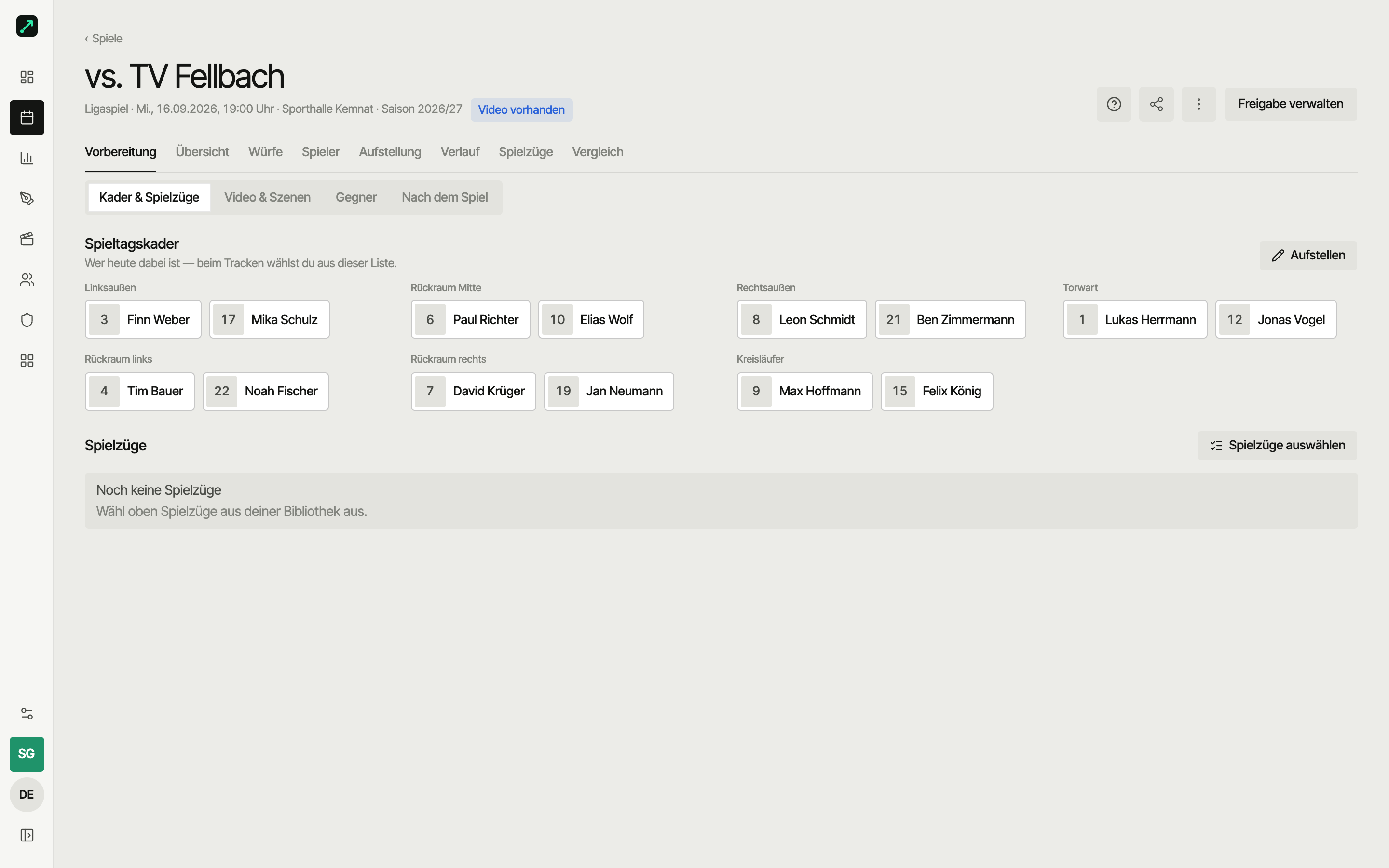
One folder per match: the matchday squad on top, then videos, scenes by tag, plays, scouting and profiles. Draft first, then share.
Studio
Cut scenes with I and O, add tags, mark players under “Involved”, draw freeze frames. Full screen on laptop or iPad.
Present
Video session on the projector or TV: just the picture, scenes by tag, played to the end of each tag. Then share the preparation with your team.
Cut your first scene.
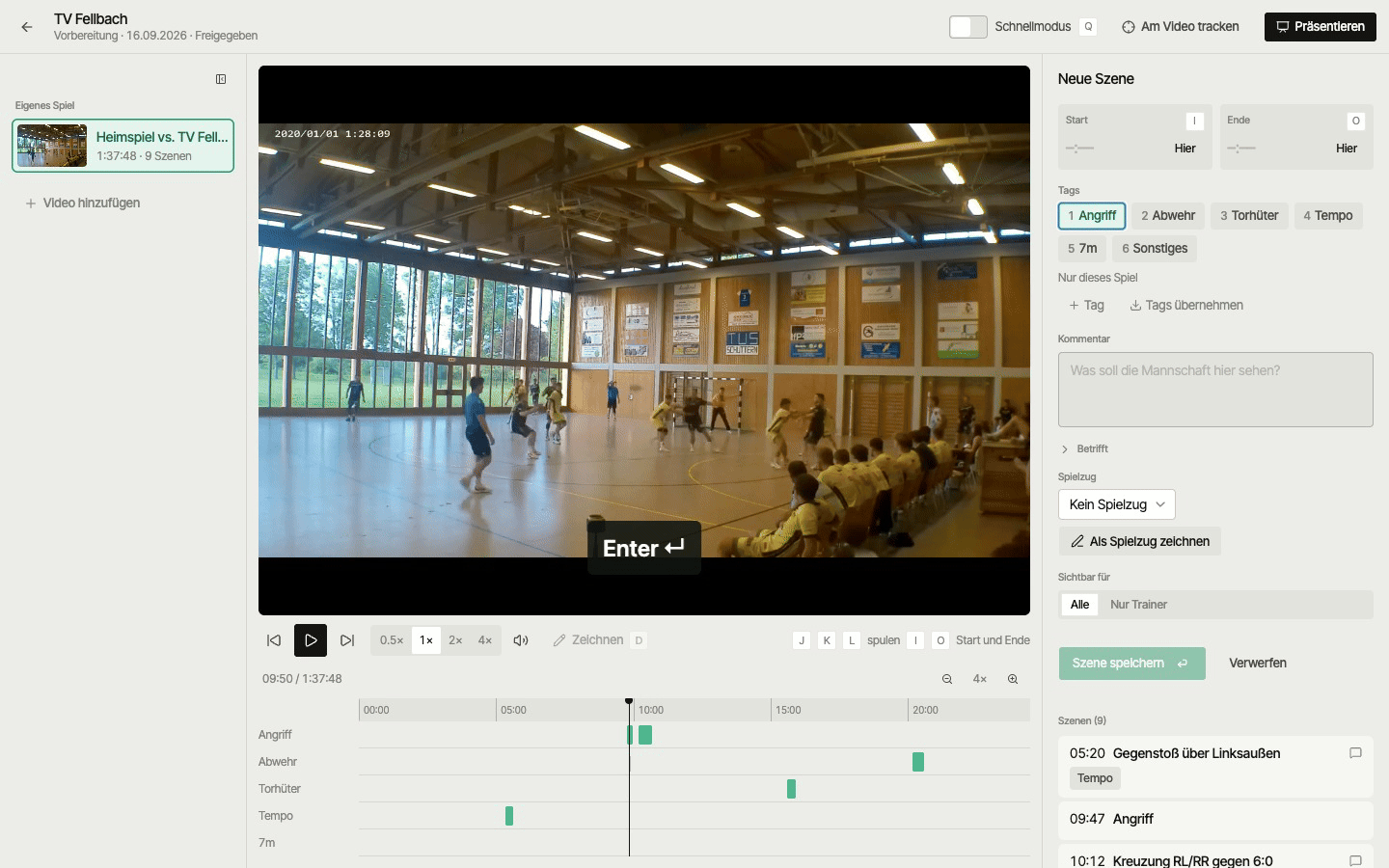
Pick a tag, press I for the start and O for the end, and the scene lands in its tag’s lane. Then hit “Present” and watch one tag’s scenes in a row.
Cut, tag, draw.
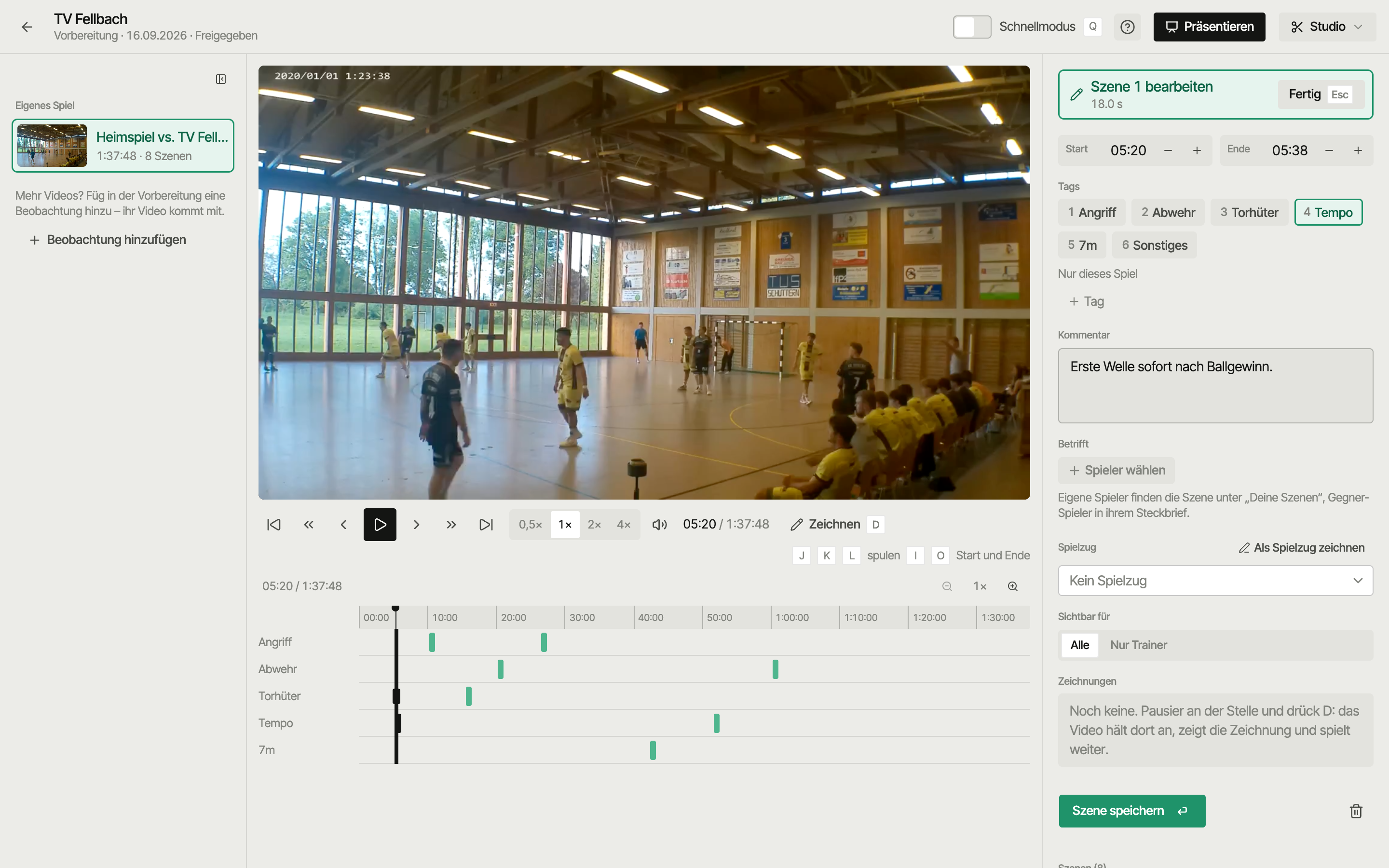
Preparation videos on the left, picture and timeline with one lane per tag in the middle, everything about the scene on the right. Save and discard are always within reach.
Cut scenes
Space plays, I sets the start, O the end, Enter saves. In quick mode you pick tags first: I … O saves instantly and the video keeps running.
Tags: for every match or just this one
Several tags per scene. Attack, defence, goalkeeper, fast break and 7m come built in; your own tags apply to every match or “This game only”, like “Back court shots no. 7”. “Import tags” brings them over from the first leg.
Involved
Mark who the scene involves. Your players find it under “Your scenes”, opponents get it in their scouting profile under “Scenes for no. 7”.
Freeze-frame drawings
Arrows, passing and running lines, zones, spotlight, text. During playback the video stops at that moment, shows the drawing for a few seconds and carries on without it. Link the scene to a play, or draw it as a play right there, and the play collects all its scenes.
Every detail, step by step: More in the docs
Video sessions on the big screen.
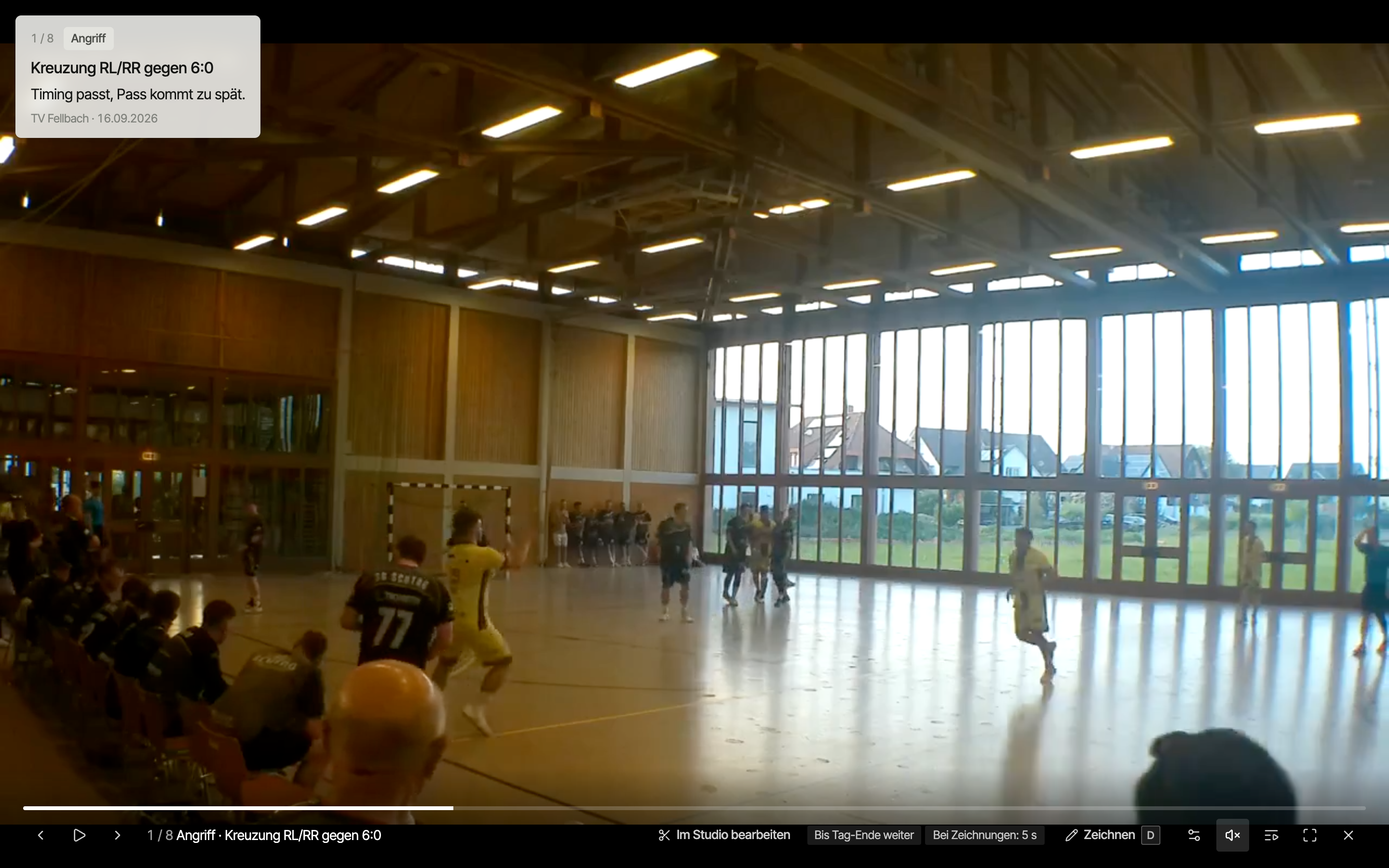
Only the picture goes on the screen, scenes grouped by tag. The default flow plays to the end of the tag: every scene of one tag in a row, then a stop for the talk.
- Info card in the top left: number, tags, comment and who the scene involves.
- Flow per device: scene by scene, to the end of the tag or everything in one go, plus repeat, slow motion and pausing at drawings.
- Drag to reorder, hide scenes for today’s session, draw live on top. Swipe on iPad, use a presenter on the laptop.
Everyone sees their own scenes first.
You share the preparation with your team. Players see it in the app: matchday squad, “Your scenes” first, then all scenes by tag as a reel, plays and profiles.
“Your scenes”
Whatever you assign to a player under “Involved” sits right at the top for them. You see who has watched.
Scenes in the profile
Scenes about an opposing shooter land in their profile next to the shot chart and rates, so your goalkeeper has everything on no. 7 in one place.
Coaches only stays with the coaches
Players don’t see scenes set to coaches only. They never see raw videos from scouting, just the scenes you share from them.
Match report and video in step.
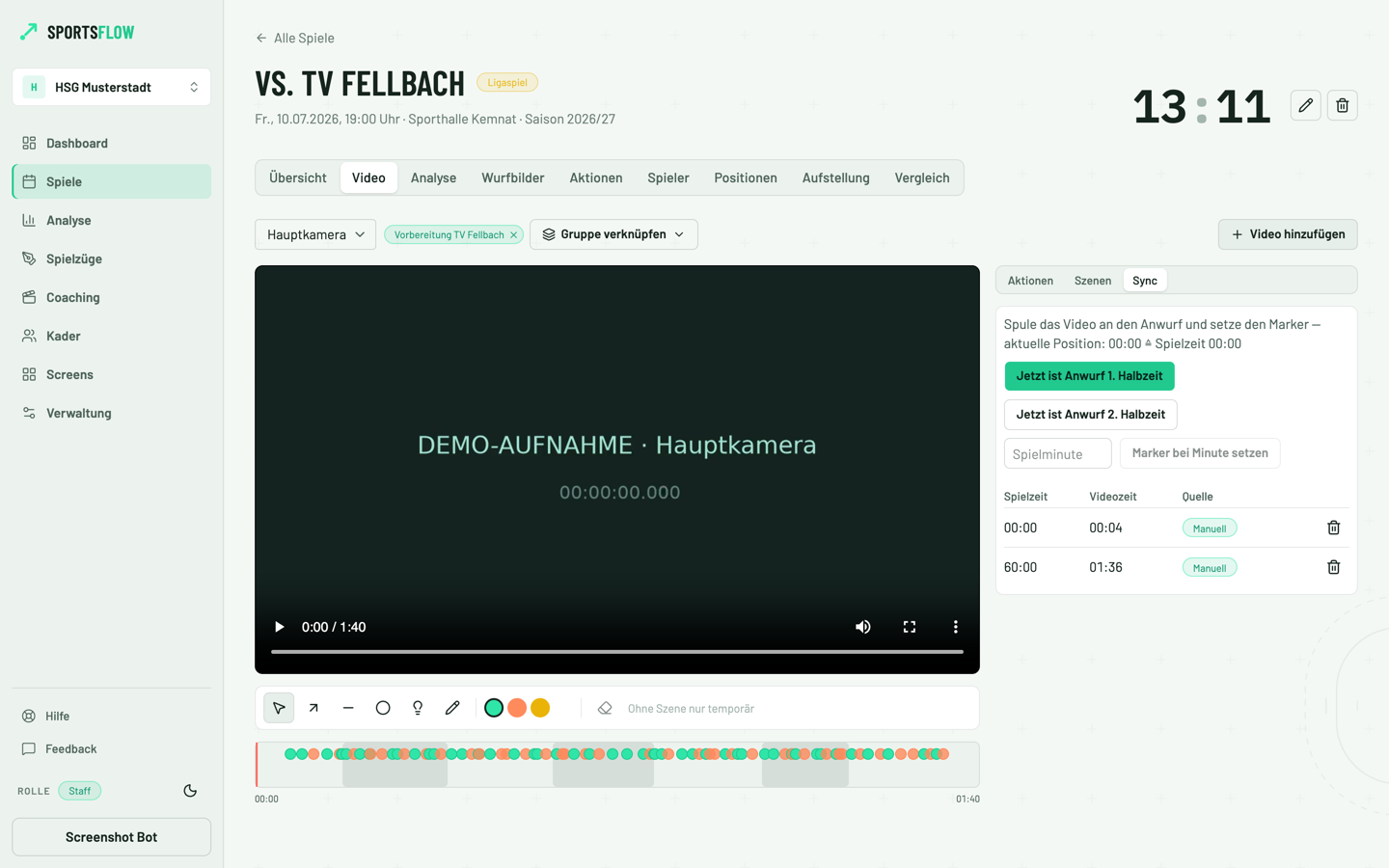
Upload the match report with timestamps (H4A PDF) or track yourself, and every action jumps to the right moment in the video.
Automatic, only when certain
From the recording time and detected whistles, SportsFlow suggests an offset per half and only applies suggestions it is sure about.
Check against a goal
For each half the video jumps to just before a goal. Tap “Looks right”, or “The goal is here”, and the offset is set.
Track from the video
Didn’t track on matchday? Add actions from the video at your own pace, and each one lands in the right place.
Watch for everyone
Video with action list, filters and reel. Click the missed shot in minute 43 and you’re right there.
iPad like web, phone deliberately light.
Web and iPad: everything
Studio, present, sync, drawing and importing tags. Touch on iPad: swipe and pinch the timeline, big start and end buttons, keyboard optional, projector via AirPlay or HDMI.
Phone: watch and quick
Watch, reels and “Your scenes”. Coaches upload a video on the go. Cutting, studio, present and sync live on web and iPad.
Video analysis FAQ
Which videos can I use?
Regular match recordings from a phone, a hall camera or a link such as YouTube. A video belongs to one of your matches, a scouted match or a play, or it stays unassigned.
Do I have to track the match?
No. Cutting and presenting scenes works with any video. With tracked actions or a match report you also get jump marks for every action.
Do players see the whole video?
Players see the shared preparation: their scenes, scenes by tag and the plays. Scenes set to coaches only and raw scouting videos stay with the coaching staff.
How much does video analysis cost?
Video analysis, preparation, studio, present and sync are part of the Pro plan: €45 per month or €449 per season, with 100 GB of video storage.
Video analysis, preparation, studio, present, sync and tracking from video come with the Pro plan: €45 per month or €449 per season. Live tracking is free on Starter.
All pricesEvery detail, step by step: More in the docs
Your sideline, digital.
Get started with nothing to lose: Starter is free, and your first match is set up in five minutes.